

 Sign in

 Български
 Čeština
 Dansk
 Deutsch
 Eesti
 Ελληνικά
 Español
 Français
 Hrvatski
 Italiano
 Latviešu
 Lietuvių
 Magyar
 Nederlands
 Norsk
 Polski
 Português
 Română
 Slovenčina
 Slovenščina
 Српски (Ћирилица)
 Suomi
 Svenska
 Türkçe
 Русский
 Українська
Using phrases in a safety data sheet
You can add text to a safety data sheet manually or using the phrase database.
You can configure phrases to be inserted into the safety data sheet automatically, or you can insert them manually.
When filling in automatically, SBLCore selects suitable phrases based on the configured rules and product classification. You can have phrases inserted into the entire safety data sheet, a selected section or a specific field.
When inserting manually, you select a phrase from the database yourself and insert it into the required field of the safety data sheet.
How to insert phrases automatically
You can insert phrases automatically in four ways.
Warning! Whichever option you choose, remember to check the final text and add any missing information, such as uses in section 1 or physical properties in section 9.
-
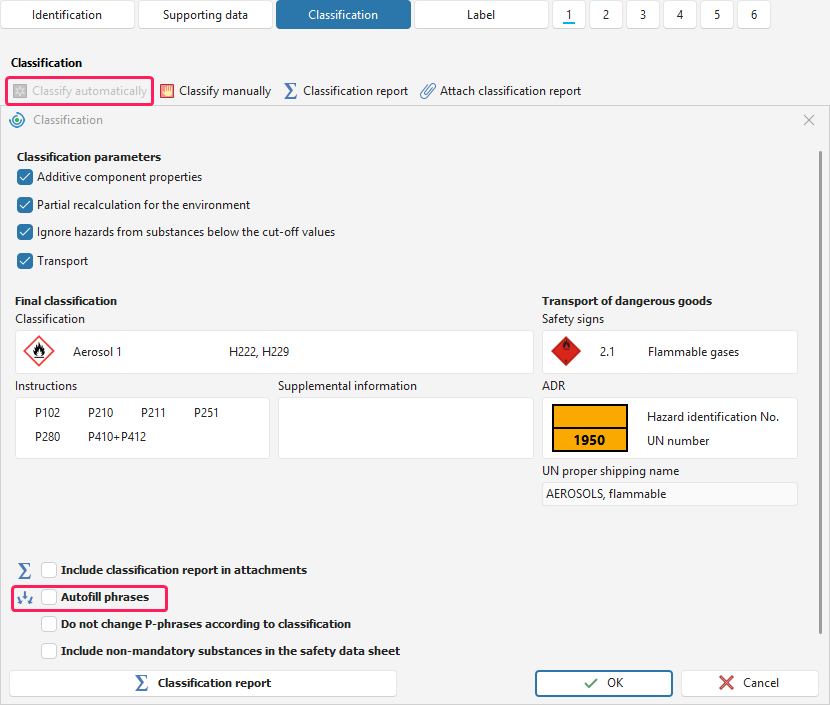
In the Automated classification window – phrases are inserted according to the product classification:
On the Classification tab, select Classify automatically.
A window showing the classification will open. At the bottom of the window, tick the Autofill phrases option.
After clicking the OK button, phrases will be filled in automatically throughout the entire safety data sheet.
-
On the toolbar - click the Autofill phrases (SDS) button – SBLCore will automatically fill in phrases throughout the entire safety data sheet.

-
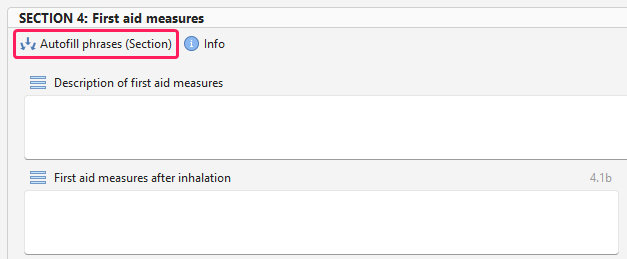
For individual sections – use the Autofill phrases (Section) button, which inserts phrases only into the selected section:
Go to the section where you want to insert phrases.
Click the Autofill phrases (Section) button below the heading of the relevant section.
The software fills in phrases in the section based on the product classification.
-
For each field in the safety data sheet editor - select Fill the phrases automatically from the menu
 in the top left corner. When you click it, the system automatically fills in phrases only in the selected field.
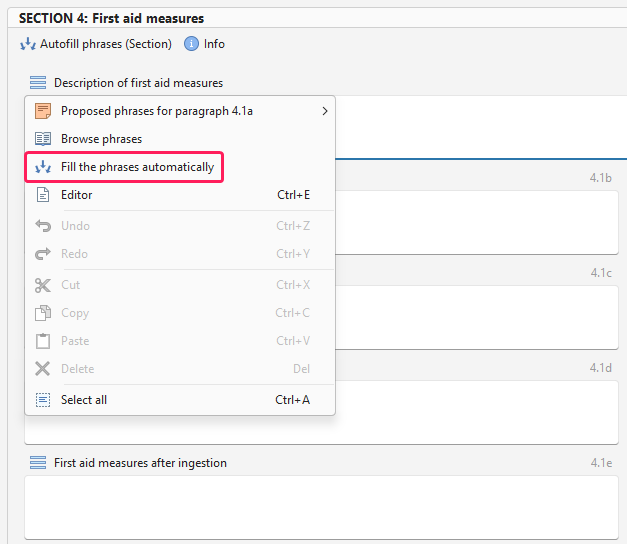
Warning! If you have already inserted phrases manually in the section, the software will overwrite them based on the product classification when you click Autofill phrases.
You can also use your own phrases when filling in automatically. You can read more in chapter Creating a custom phrase.
How to insert phrases manually
In the safety data sheet editor, you can display suggested phrases for each field.
Procedure:
Click the menu
to the left above the text field.Select Proposed phrases.
Phrases for the relevant section will be displayed.
Click a phrase to insert it at the position of the text cursor.
You can easily distinguish user-defined phrases from default phrases: they are always at the top of the list and are marked with the icon
 .
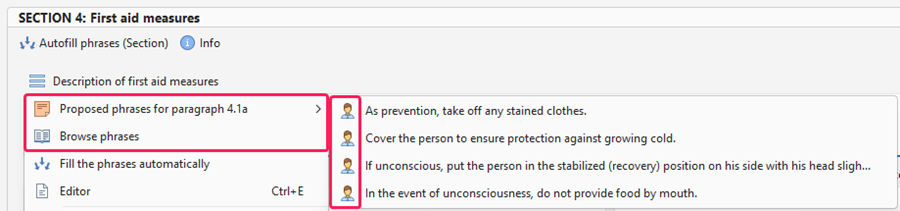
If you want to browse or filter phrases, select Browse phrases from the menu . All phrases for the relevant section will be displayed. You can filter the list using the command line.
If you want to display all available phrases, clear the filter by clicking the cross in the bottom left corner. All phrases offered by the software will be displayed. You can also use phrases assigned to other sections in the relevant section.
Highlighting phrases
SBLCore distinguishes between phrases stored in its database and those it does not recognise.
If SBLCore recognises a phrase, it does not highlight it. However, if you edit a predefined phrase, add your own text to it or write new text, SBLCore will highlight it.
Highlighting allows you to quickly identify text that differs from the stored phrases. This may include, for example:
new text that has not yet been saved as a user-defined phrase,
an edited or supplemented phrase,
a typo or another unintended change.
What does the blue underline mean?
The blue underline indicates text that SBLCore does not recognise as a stored phrase and therefore cannot translate. After the safety data sheet has been translated, the underline highlights any untranslated parts of the text.
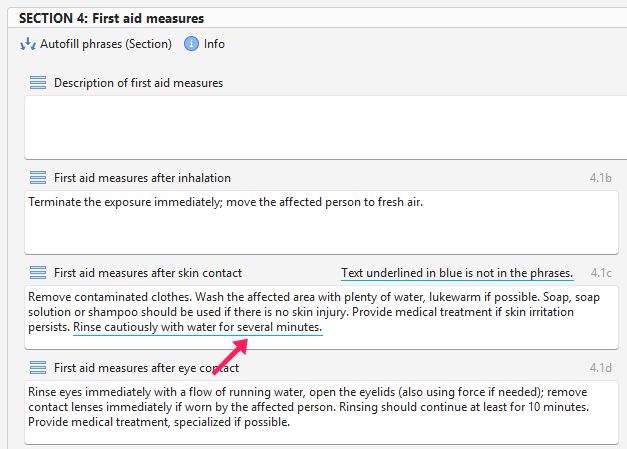
If this is your own wording that you want to use repeatedly, save it as a user-defined phrase.
You can find out how to create a new phrase in chapter Creating a custom phrase.
What does the orange underline mean?
SBLCore may underline some phrases in orange. The orange underline indicates that the phrase is outdated. For example, it may refer to an older standard or regulation.
In this case, proceed as follows:
Use the default SBLCore phrase. If you do not need to refer to a specific piece of legislation or standard, we recommend using the default phrase from the SBLCore database.
Check whether the phrase is still up to date. If you need to specify a particular piece of legislation, check whether it is still valid in the relevant state and whether the wording of the phrase complies with it.


