
 Sign in

 Български
 Čeština
 Dansk
Dansk
 Deutsch
 Eesti
Eesti
 Ελληνικά
 Español
 Français
 Hrvatski
 Italiano
 Latviešu
 Lietuvių
 Magyar
 Nederlands
 Norsk
Norsk
 Polski
 Português
 Română
 Slovenčina
 Slovenščina
 Српски (Ћирилица)
 Suomi
Suomi
 Svenska
 Türkçe
 Русский
 Українська
Creating a custom phrase
You can create a custom phrase in two ways:
- on the Phrases tab or
- directly while working with a safety data sheet.
How to create a phrase on the Phrases tab
- Open the Phrases tab.
- Click New.
- The new phrase editor opens.
- In the Section field, select the part of the safety data sheet where you want to use the phrase. If you want to use the phrase universally, leave the field blank.
- Enter the phrase text in the field for the relevant language.
- You can also add translations into other languages.
- Click Save or Save and close.
Details about the individual fields can be found in the Phrase editor chapter.
How to create a phrase from a safety data sheet
When you enter text in a section that is not included in the default phrases, SBLCore underlines it in blue. At the same time, the Text underlined in blue is not in the phrases. notification appears above the field on the right.
You can save this text directly as a new phrase.
Procedure:
- In the relevant field in the safety data sheet editor, enter the text you want to save.
- Right-click in the field or open the drop-down menu
 to the left above the text field.
 - Select Add to phrases.
- The phrase editor opens. SBLCore automatically fills in the relevant section and the text from the field.
- If the field contains more text, delete everything except the phrase you want to save.
- Check the information in the editor and add translations if necessary.
- Click Save or Save and close.
Details about the individual fields can be found in the following chapter.
Phrase editor
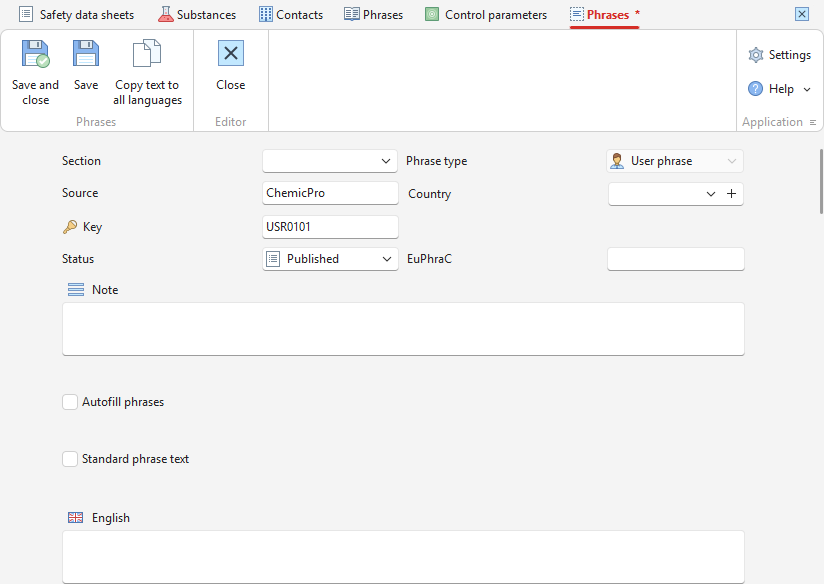
In the editor, you specify where and how the phrase should be used and enter its text, including translations.
-
Section
Select the part of the safety data sheet where you want to use the phrase. If you want to use the phrase universally, leave the field blank.
-
Source and Key
The software automatically fills in the Source field with the company name and adds the phrase code to the Key field. You do not need to edit these fields.
-
Status
The software automatically sets the status to Published. If the phrase is not yet final, you can select a different status, for example Published.
-
Phrase type
For a custom phrase, the software automatically sets the type to User phrase.
-
Country
You can specify the country for which the phrase should be used. This is useful, for example, for information about poison centres, which differs from country to country.
-
Note
You can add a note to the phrase for easier reference. You will only see it in the software; it will not appear in the resulting documents.
-
Autofill phrases
You can set the conditions under which the software automatically adds the phrase to the safety data sheet. Details can be found in the next chapter Rules for automatic use of a phrase.
-
Fields for individual languages
For each language, you can enter your own wording of the phrase in a separate field.
When creating a new phrase, we recommend adding translations into all the languages you need straight away. However, you can also add them later.
Enter each phrase as one separate sentence ending with a full stop. If you enter multiple sentences, SDS translation may not work correctly.
Rules for automatic use of a phrase
In SBLCore, you can set conditions according to which the Autofill phrases function automatically fills in selected phrases. You can use a single condition or combine several conditions into a more complex rule.
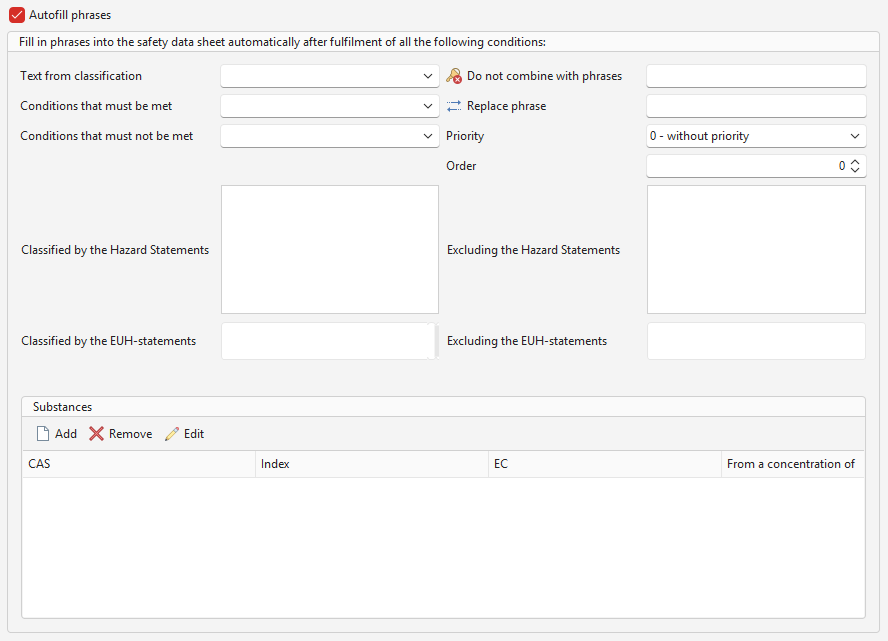
You can set the following conditions:
-
Text from classification
In any field of the safety data sheet, you can set the text of an H statement to be displayed automatically according to the resulting product classification.
For example, in section 4.3b More information, you can create a phrase and insert the item Autofill phrases – Acute toxicity into it. If the product is classified as acutely toxic (e.g. H302), the relevant classification text is automatically displayed in the selected field. For H302, the text Harmful if swallowed. is displayed.
-
Conditions that must be met
Here you can set the conditions that the product must meet for the system to automatically insert the phrase into the safety data sheet.
After opening the menu, you can select one or more conditions, such as physical state, product type or use.
-
Conditions that must not be met
Here you can set the conditions that the product must not meet for the system to automatically insert the phrase into the safety data sheet.
After opening the menu, select one or more conditions. You can choose from the same options as in the previous point.
Important! For points 2 and 3, the following applies: if you select multiple conditions, the product must meet all selected conditions.
-
Do not combine with phrases
In this field, enter the phrase key that SBLCore must not insert into the same section as the current phrase.
If SBLCore were to insert both phrases into the same section, it inserts only one of them based on the selected conditions, priorities, and order.
If you want to exclude combinations with multiple phrases, enter their keys separated by commas without spaces.
-
Replace phrase
In the field, enter the key of the phrase you want to replace.
If the section contains this phrase, SBLCore replaces it with the current phrase the next time the rules are evaluated.
You can use this setting, for example, when you want to replace a general wording with a more precise phrase based on the properties of a specific product.
If you want to replace multiple phrases at once, enter their keys separated by commas without spaces.
-
Priority
Priority determines which phrase takes precedence when a section is filled in automatically.
The following rules apply:
Priority 0 – the phrase is filled in if no other phrase with priority 1, 2, 3, 4, 5… is available.
Priority 1 – highest priority. The phrase takes precedence over phrases with priority 0, 2, 3, 4, 5…
Priority 2 – the phrase takes precedence over phrases with priority 0, 3, 4, 5…
Priority 3 – the phrase takes precedence over phrases with priority 0, 4, 5…
-
Order
The Order field determines the order of phrases with the same priority in the safety data sheet.
For example, if five phrases have priority 1, you can set their order from 1 to 5.
For example: 1. Wash your hands. 2. Dry your hands with a towel.
-
Classified by the Hazard Statements
Here you can select one or more H statements. If the product has at least one of the selected H statements, SBLCore automatically inserts the phrase into the relevant section of the safety data sheet.
-
Classified by the EUH-statements
Here you can select one or more EUH statements.
If the product has at least one of the selected EUH statements, SBLCore automatically inserts the phrase into the relevant section of the safety data sheet.
Important! For points 8 and 9, it is sufficient for the product to have at least one of the selected statements.
-
Excluding the Hazard Statements
Select the H statements for which the phrase should not be used.
If the product contains any of the selected H statements, SBLCore does not insert the phrase.
-
Excluding the EUH-statements
You can set EUH statements in the same way.
If the product contains any of the selected EUH statements, SBLCore does not insert the phrase.
-
Substances
SBLCore can also insert the phrase automatically based on whether the product contains a specific substance.
You can enter the substance using one of the identifiers, for example:
- CAS number,
- EC number,
- Index number.
If the product contains the selected substance, SBLCore inserts the relevant phrase into the safety data sheet.
You can also set the minimum concentration of the substance from which the phrase should be inserted.