
 Sign in

 Български
 Čeština
 Dansk
Dansk
 Deutsch
 Eesti
Eesti
 Ελληνικά
 Español
 Français
 Hrvatski
 Italiano
 Latviešu
 Lietuvių
 Magyar
 Nederlands
 Norsk
Norsk
 Polski
 Português
 Română
 Slovenčina
 Slovenščina
 Српски (Ћирилица)
 Suomi
Suomi
 Svenska
 Türkçe
 Русский
 Українська
Revision and update of the safety data sheet
In this chapter, you will learn how to check and update a safety data sheet (SDS).
You will also become familiar with the options for manual and automatic substance updates and the substance comparison function, which helps you quickly identify differences between original and current data. You will use these functions whenever you need to verify data validity or carry out their revision.
Revision status
In the Safety data sheets tab, you can see the SDS status in the Revision column. The traffic light colour indicates its validity.
 Green – the SDS contains current data.
 Orange – the SDS contains an expiring substance and/or is in a format that will soon become invalid. Update it before it expires.
 Red – the SDS contains outdated data (e.g. substances or control parameters) and/or is in an old or invalid format.
 Grey - the SDS status cannot be evaluated because you do not have an active subscription for this state.
A red or orange status means that the SDS requires revision.
How to perform a revision
-
In the Safety data sheets tab, open the safety data sheet. Simply double-click it or select it and click Edit.
-
The SDS editor will open. On the right side, you will see what needs to be changed. For example: “Please note: Expiring substance. Outdated control parameters.”.
-
Click the Revise button in the toolbar.

-
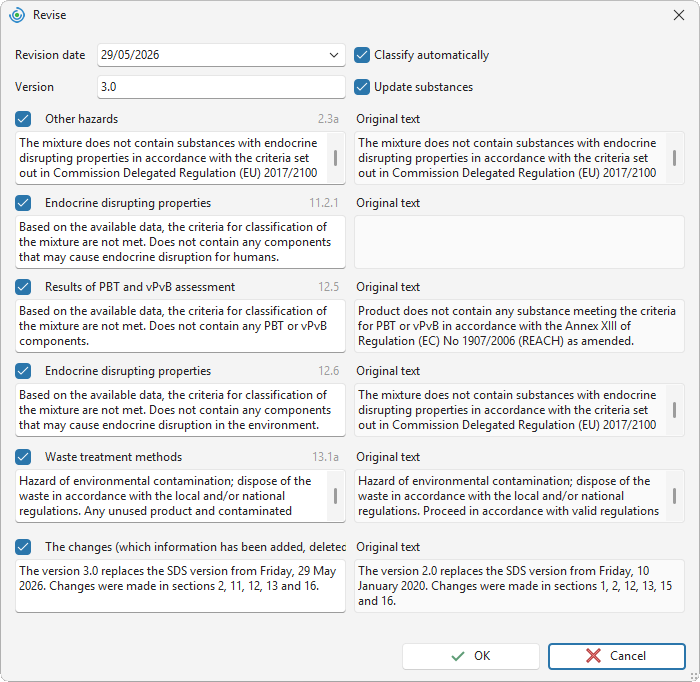
A window will open where the software displays information that it suggests updating automatically.
-
In the first field, the software automatically sets the Revision date. If necessary, you can adjust it.
-
The Version field will increase by 1. For example: version 1.0 will become 2.0.
-
In the upper right part of the window, two automatic functions are selected:
Classify automatically – the software will perform automatic classification. H-statements and P-statements may change.
Update substances – the software will modify substance information. For old and expiring substances, it will search for the current version. For example, it updates classification or identifiers. It also updates outdated control parameters.
Tip! If you want to keep track of specific substance changes, untick these functions. Update substances manually (see the following chapter) and then check the classification.
-
The left side of the window displays changes (updates) in individual sections. The right side shows the sections in their original wording.
-
If necessary, untick the sections that you do not want to update.
- Section numbers in which changes will be made are added to section 16. We recommend including this information, so after the update, manually complete/edit it to ensure that the list of modified sections is correct.

-
To perform the revision, click the OK button.
-
A duplicate of the safety data sheet with updated content will be created. The original SDS will be archived.
If you selected the automatic classification function, the classification window will open. Confirm it using the OK button or cancel it using the Cancel button.
If you selected the Update substances option, the software performed an automatic substance update.
If you did not select the Update substances function, perform the update manually, see the Manual substance update chapter. After manually editing the substances, perform classification and, if necessary, edit individual sections.
If the product has undergone a change in composition or classification, check whether it is necessary to add/change the UFI and update the PCN notification.
-
Enter the numbers of the sections that you changed during the revision into subsection 16g. This also applies to changes in composition in section 3 and control parameters in section 8.
Manual substance update
If you want to keep track of composition changes, you can update substances manually. The software will then display the changes it suggests for individual substances.
-
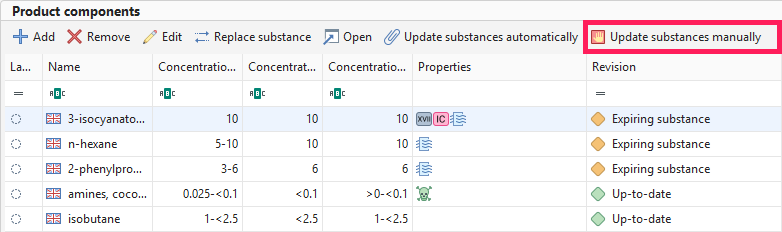
In the Supporting data section, go to Product components. Then click Update substances manually.
-
A window with an overview of substances will open.
-
Substances that need to be updated are selected automatically, and the Status column displays “Update” or “Substance revision”.
Update means that the software will add new information to the safety data sheet that you added to the substance (for example, a toxicity value that you newly entered).
Revision means that the software will automatically modify your substance according to the new version of the source substance (for example, after publication of a new harmonised classification).
-
Optionally, you can compare the information to be updated.
- Click to select the row with the substance.
- Click the Compare button in the top bar of the window.
- A comparison of the original substance and the updated version will be displayed. Data that will be updated are highlighted in blue.
-
If you want to view the updated version of the substance, click to select the row with the substance and click the Open updated substance button in the top bar. The substance editor will open, where you can make changes. Clicking Close in the top bar will return you to the comparison window.
-
If you want to update the original substance to a different one than the one assigned by the software, click the Choose another substance button in the top bar and search for the required substance.
-
If you do not want to update the substance, untick it in the Update substances column.
-
To update selected substances, click OK.
-
The substances should now appear in the overview as current.
-
Perform classification and check the data in the SDS, including the validity of section 16.
Automatic substance update
If you do not want to compare substance information and review it manually, you can update substances automatically.
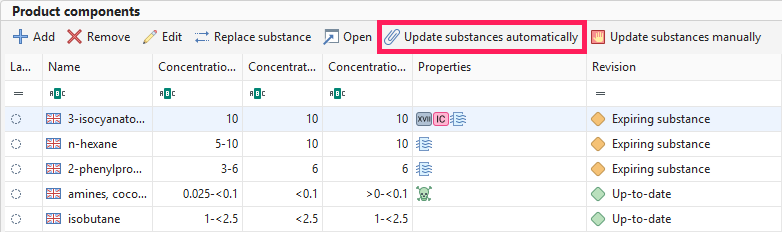
The function works the same way as the Update substances option in the SDS revision window.
The software automatically modifies substance information. For old and expiring substances, it searches for the current version (newer classification, current toxicity values, etc.) and also updates control parameters.
Replace substance
If you want to replace a substance with a different one than the one assigned by the software, you can replace it manually.
In Supporting data, go to Product components. Then click Replace substance and select a substance from the database.
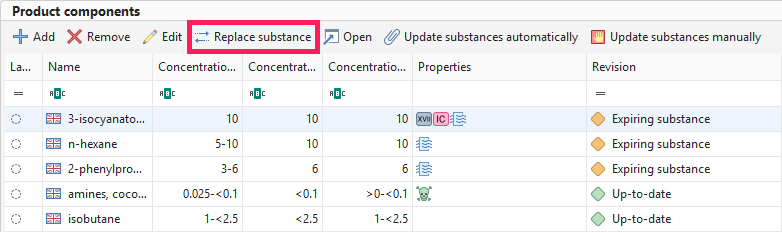
The Choose another substance button in the manual substance update window has the same function.