 Sign in

 Български
 Čeština
 Dansk
Dansk
 Deutsch
 Eesti
Eesti
 Ελληνικά
 Español
 Français
 Hrvatski
 Italiano
 Latviešu
 Lietuvių
 Magyar
 Nederlands
 Norsk
Norsk
 Polski
 Português
 Română
 Slovenčina
 Slovenščina
 Српски (Ћирилица)
 Suomi
Suomi
 Svenska
 Türkçe
 Русский
 Українська
Adding custom substances to the database
In this chapter, you will learn how to create a new substance. You will use this procedure, for example, when the substance you need is not in the database or when you want to add your own information to a substance.
Creating a new substance
-
Open the Substances tab.

-
Click the New substance button in the toolbar.
-
A new tab will open.
-
The tab contains two mandatory fields marked with an orange arrow: Source and Name.
-
Fill in the first mandatory field Source, located on the left – in the Identification section.
Source specifies which substance it is. We recommend stating, for example, the supplier of the substance or of the entire safety data sheet.
-
Add the substance name by clicking the Add button on the right. In the same window, select the type and language of the name.
-
Save the name using the OK button.
Once you fill in both mandatory fields, you can save and use the substance. However, it is recommended to complete additional information as well.
The substance editor is divided into several separate sections:
Identification
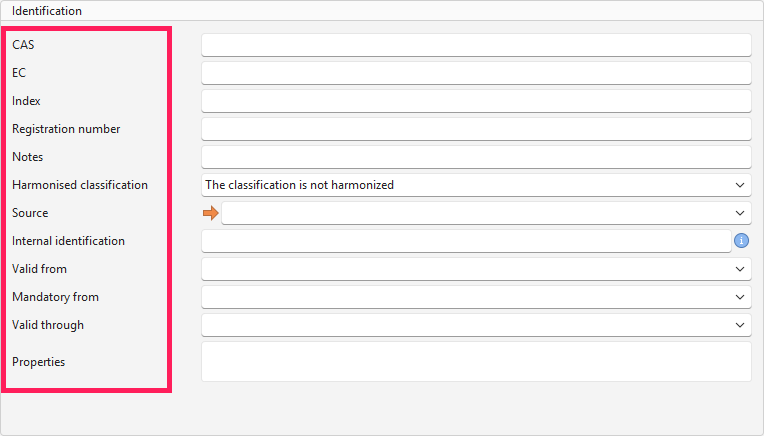
You can find it on the left side of the editor – besides Source, you can also fill in other data used for unambiguous identification of the substance, such as substance identifiers (CAS, EC) or properties. Completed identification is important for correct assignment of data in the safety data sheet (SDS).
-
The initial section contains fields for completing identification numbers CAS, EC, Index and REACH (Registration number). Fill in the numbers available for the given substance:
a. CAS number (Chemical Abstracts Service) – a unique identifier of a chemical substance worldwide.
b. EC number (EINECS/ELINCS/EC number) – a European identifier of a chemical substance.
c. Index is a number assigned to a substance with harmonised classification. Such substances can always be found in the database.
A substance with harmonised classification is a substance that has an assigned Index and is listed in Annex VI of the CLP Regulation. The classification of such a substance is unified across the EU and must be used. These substances are part of the SBLCore database and should always be available.
d. Registration number (REACH) is a unique identifier assigned by the European Chemicals Agency (ECHA). Only fill it in if it is available in the source document.
-
The Notes field applies to substances with harmonised classification. It contains additional information about the substance. When creating a new non-harmonised substance, do not edit this field.
-
The Harmonised classification field by default indicates that the substance does not have harmonised classification. The database contains all harmonised substances and is regularly updated according to the latest regulations. Therefore, you should not encounter a situation where you need to change this field.
-
In the Internal identification field, enter information as needed (it is not displayed in the final SDS).
-
The Valid from, Mandatory from, and Valid through fields apply to substances with harmonised classification. These data are used during substance revision. When creating a new non-harmonised substance, these fields do not need to be filled in.
-
Clicking in the Properties field opens a new window where you can select one or more properties that will later be displayed in the final document for the substance.
Substance names
On the right side of the editor – in the Substance names section, you can add additional names and translations.

-
Click the Add button to add another substance name.
Tip! If you need to change the name, use the Edit button or open it by double-clicking.
-
In the Type field, select the type of substance name (e.g. chemical name, IUPAC, INCI, etc.).
-
In the next field, select Language.
-
In the Name field, enter the substance name in the selected language.
-
Fill in the Description and Note fields as needed (they are not displayed in the SDS).
-
If you enter multiple names in one language, select Preferred name for the one you want to use primarily (this name will be offered by the software for display in the SDS).
-
Save using the OK button.
-
To add another name, click the Add button again and repeat the process.
Classification and labelling
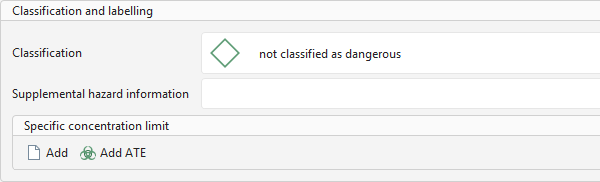
In the Classification and labelling section, you can enter information about the hazards of the substance. This section is used to clearly communicate risks associated with the substance. Correct classification is the basis for classification calculation and regulatory compliance.
Classification
-
Click the Classification field.
-
A new window will appear.
-
The left side contains a list of standard hazard statements.
-
The list consists of three columns: Category, Labelling and Version. You can filter within each column.
-
You can find a specific statement by:
- filtering in the columns,
- using the search field above the list,
- manual scrolling.
-
Add a statement by double-clicking it or select it and click the Add selected statements button. The statement will move to the right side and will be displayed for the substance.
Tip! To select multiple statements, hold Ctrl and click to select more items, then click Add selected statements.
-
To remove a statement, select it and click Remove the selected phrases or remove all using Clear phrases list.
-
Save using OK.
-
If the substance contains an EUH statement, click the Supplemental hazard information field.
-
Select the appropriate statement.
-
Save using OK.
Specific concentration limit
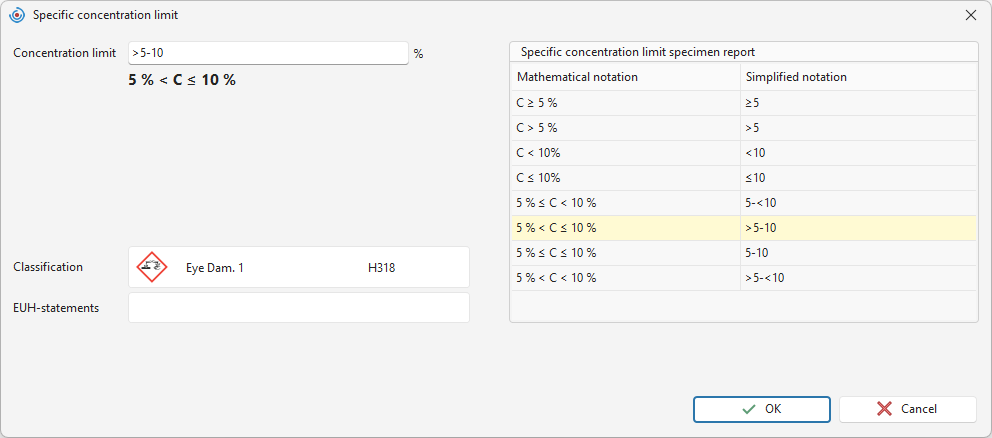
You can add a Specific concentration limit (SCL), which the software uses during hazard calculation.
-
Click the Add button in the Specific concentration limit section.
-
A new window will open.
-
Enter the concentration in the Concentration limit field.
Tip! To simplify entry, use the table on the right side of the window. Double-click to select the desired template and then adjust it in the field as needed.
-
In the Classification field, select the hazard the SCL applies to, or if it relates to a supplemental statement, select it in the Supplemental hazard information field.
Tip! We recommend creating a separate SCL for each statement (H or EUH).
-
Save using OK.
ATE (Acute Toxicity Estimate)
You can add ATE values that influence the resulting classification of acute toxicity.
The ATE value will be displayed in the SDS in section 3 and 11.
- Click the Add ATE button in the Specific concentration limit section.
- A new window will open.
- Select the route of exposure.
- Enter the value in the given units.
- Save using OK.
Toxicity and ecotoxicity
In this section, you can enter data on the effects of the substance on health and the environment. These data are displayed in section 8 (DNEL, PNEC), 11 (toxicity) and 12 (ecotoxicity) of the SDS.
If a substance with identical identifiers already exists in the database, you can copy the data using the Copy toxicity from another substance button.

-
Click the Add button.
Tip! Use the Preset button (top right) to speed up the entry of the most commonly used data.
-
In the Toxicity field, select the data type – DNEL/PNEC (section 8), Toxicity (section 11) and Ecotoxicity (section 12).
-
The following fields will adjust according to the previous selection.
-
Fill in the available data.
-
Save using the OK button.
Warning: If you enter anything into fields where free text can be inserted, no translation will occur when converting the SDS into another language, for example the Source field.
Physical and chemical properties
Data from this section are displayed in section 9 of the SDS.

- Click the Add button.
- In the new window, click the Property field and select the parameter you want to enter.
- Some properties have predefined units; others must be entered manually.
- Enter the values and save using the OK button.
Warning: If you enter free text in fields, it will not be translated when the SDS is converted into another language.
Control parameters
Control parameters are exposure limits (section 8).

- Click the Add button.
- In the new window, select the country for which the limit applies.
- Select the type of limit.
- Fill in data such as Official data source and Value.
- Save using the OK button.
The entered parameter is saved in the database and automatically assigned to other substances with the same identifier.
The control parameter can also be added in the Control parameters tab, where you can manage all parameters available in your database.